
Restarting Web App Instances
There are a few ways to seemingly “restart” a Web App (Windows) in Azure. Not all of them are equal, or necassarily doing what you think they are doing. In this post, I detail out some of the more common methods.
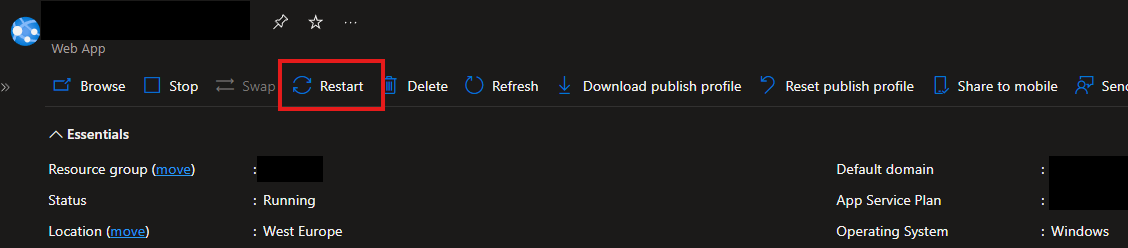
Hitting Restart on the Web App Overview Page.
This option from the Web App > Overview page will restart ALL the Web App instances and their underlying processes, but not other Web Apps on the App Service Plan.
- Comparable to an IISRESET command you would run on Windows.
- Expect downtime, HTTP 503’s etc. This will take down the Web App for the duration of the restart, which means a cold start of the app and re-initialization if you have Application Initialization enabled.
- This includes the Kudu Process.
- Same Instance remains i.e Instance ID doesnt change.
Advanced Application Restart of an Instance.
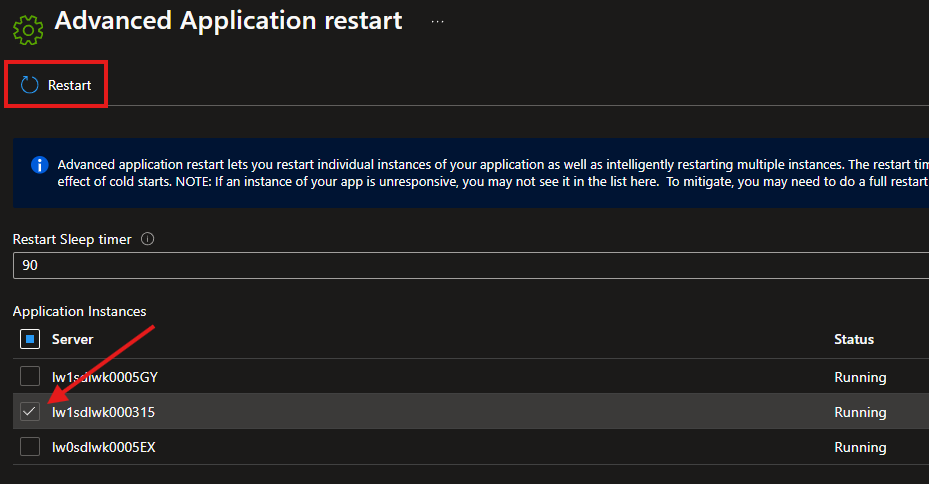
Form the Web App, under Diagnose and solve problems, we have the Advanced Application Restart diagnostic tool. This allows us to restart each instance individually.
- Comparable to an Application Pool Recycle in IIS. Contrary to what is states in the portal, this is a recycle not a restart/IISRESET operation.
- Partial impact, not completely down.
- Doesnt include Kudu Process.
- Same Instance remains i.e Instance ID doesnt change.
- Any new requests coming into the Web App will be directed to another instance, if another exists.
- If the Local Cache option is enabled on the Web App, this will not update the cache, you can only do that with the Web App restart operation above.
Advanced application restart lets you restart individual instances of your application as well as intelligently restarting multiple instances. The restart timer lets you specify the time interval in seconds used between restarting individual instances of the app reducing the effect of cold starts. NOTE: If an instance of your app is unresponsive, you may not see it in the list here.
To mitigate, you may need to do a full restart of your app. To prevent this from occuring in the future, we recommend setting up Health Check.
Individual Instance (Worker) Restart
Currently there is not a way to manually restart Web App instances individually using the Portal. Other than scaling in the number of instances and scaling out again, but you cannot be sure which one will be removed in this operation.
You can however use PowerShell to leverage the API call to restart Web App Instances individually.
This will restart the specified instance, not recycle and the Instance ID will change.
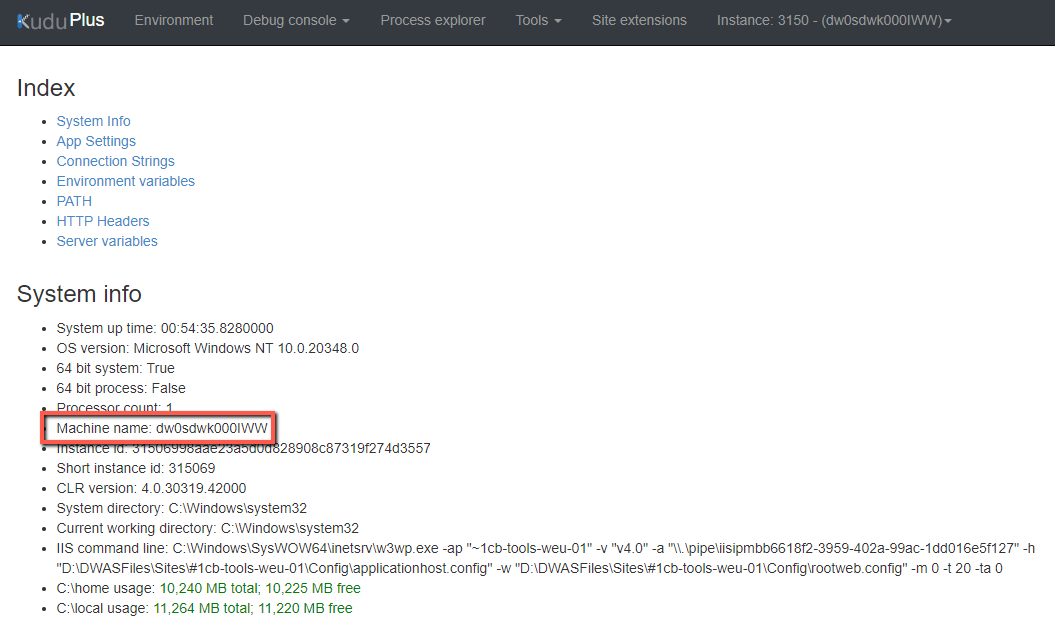
#MachineID is the name of the instance as per the pics below in Advanced App Restart reference and Kudu. If you check the instance details in Kudu, it will be the "Machine Name" field.

$MachineID = "Insert MachineID here"
$subID = "Insert Subscription ID here"
$rsg = "Insert Resource Group Name here"
$asp = "Insert the App Service Plan Name here"

Invoke-AzResourceAction `
    -ResourceId "/subscriptions/$subID/resourceGroups/$rsg/providers/microsoft.web/serverfarms/$asp/workers/$MachineID" `
    -Action reboot `
    -Force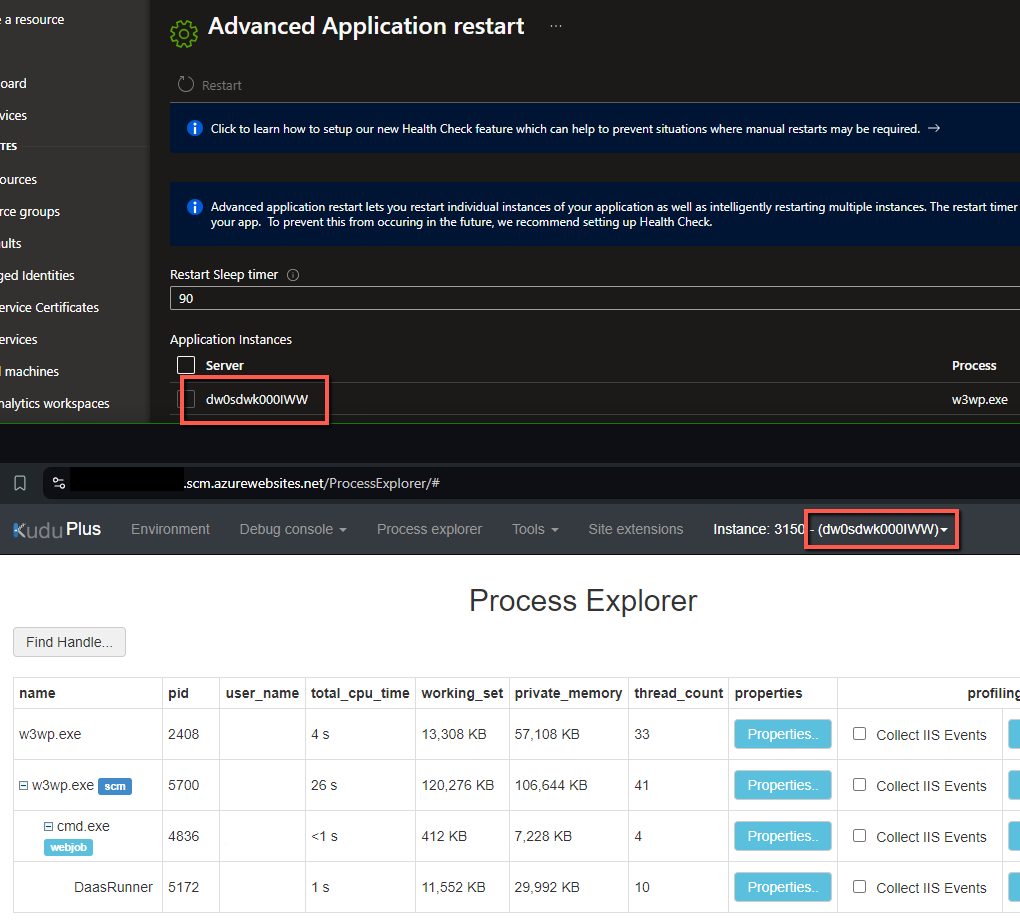
Health Check Restarts
If you want automatic Web App Instance restarts, check out Web App health checks.
- Enabling Health Check on your Web App will restart the Web App.
- As part of the Health Check functionality, it will attempt various things, including instance restarts to return your App/an Instance to a working state.
What Web Apps do with Health checks
- When given a path on your app, Health check pings this path on all instances of your App Service app at 1-minute intervals.
- If a web app that’s running on a given instance doesn’t respond with a status code between 200-299 (inclusive) after 10 requests, App Service determines it’s unhealthy and removes it from the load balancer for this Web App. The required number of failed requests for an instance to be deemed unhealthy is configurable to a minimum of two requests.
- After removal, Health check continues to ping the unhealthy instance. If the instance begins to respond with a healthy status code (200-299), then the instance is returned to the load balancer.
- If the web app that’s running on an instance remains unhealthy for one hour, the instance is replaced with a new one.
- When scaling out, App Service pings the Health check path to ensure new instances are ready.
Health check doesn’t follow 302 redirects. At most one instance will be replaced per hour, with a maximum of three instances per day per App Service Plan. If your health check is giving the status Waiting for health check response then the check is likely failing due to an HTTP status code of 307, which can happen if you have HTTPS redirect enabled but have HTTPS Only disabled.
Microsoft Reference - What App Service (Web App) does with Health checks