Error When Uploading a Cert to a Web App
Scenario
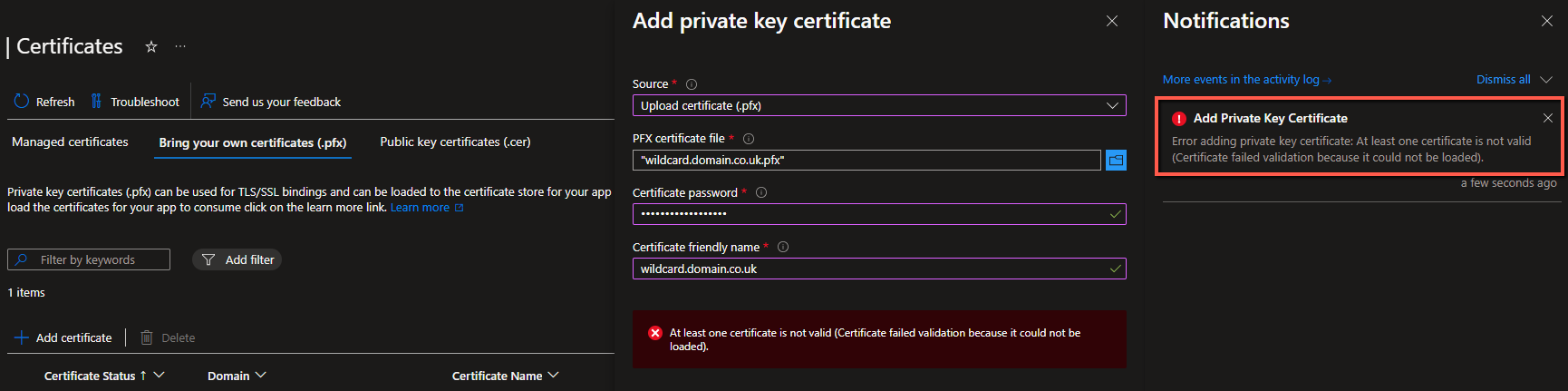
Trying to upload a certificate to your Web App fails, with the following error:
“Error adding private key certificate: At least one Certificate is not valid (Certificate failed validation because it could not be loaded)”
The scenario I saw this on was with a .Net Web App, and in this case, specifically Asp.Net v4.8.
I was able to replicate this issue on two totally seperate environments, both on .NET. Interestingly though, I tried reproducing this issue on a PHP Web App, and it never had the same error initially, the certificate uploaded ok. Later on, I managed to get the same error on a PHP Web App, so consistency seems to be an issue here.
Or could just be Az Portal gremlins.
Check Your Certificate Against the Web App Requirements
If you choose to upload or import a private certificate to a Web App, your certificate must meet the following requirements:
- Exported as a password-protected PFX file, encrypted using triple DES.
- Contains private key at least 2048 bits long
- Contains all intermediate certificates and the root certificate in the certificate chain.
After you add a private certificate to an app, the certificate is stored in a deployment unit that’s bound to the App Service plan’s resource group, region, and operating system combination, internally called a webspace. That way, the certificate is accessible to other apps in the same resource group, region, and OS combination. Private certificates uploaded or imported to App Service are shared with App Services in the same deployment unit.
You can add up to 1000 private certificates per webspace.
Resolution
Easy way to fix this is to re-encrypt the certificate, using Powershell on a Windows machine.
- You can import the Certificate into Windows with or without a password, but when you export it, it will need a password to upload to Azure.
- Do not include the following special characters in your password, I have seen them cause issues with Azure before ’$’ ’&’ ’#’ ’%‘
Import the certificate into Windows
# Provide the path for the cert you want to import
$importpath = "c:\certs\wildcard.domain.co.uk.pfx"

# Provide the cert password.
$importpwd = "plaintext password here"

Import-PfxCertificate -FilePath $importpath -CertStoreLocation Cert:\LocalMachine\My -Password (ConvertTo-SecureString -String $($importpwd) -AsPlainText -Force) -Exportable
If the import is successful, the PS Output will include the Certificate Thumbprint. Make a note of that for the export step.
Export the certificate ready for Azure
# Provide the path to save the certificate to
$exportpath = "c:\certs\wildcard.domain.co.uk.pfx"

# Ensure the certificate has a password.
$exportpwd = "plaintext password here"

# Imported Cert Thumbprint
$exportthumb = "thumprint goes here"

Export-PfxCertificate -Cert Microsoft.PowerShell.Security\Certificate::LocalMachine\My\$exportthumb -FilePath $exportpath -Password (ConvertTo-SecureString -String $($exportpwd) -AsPlainText -Force)
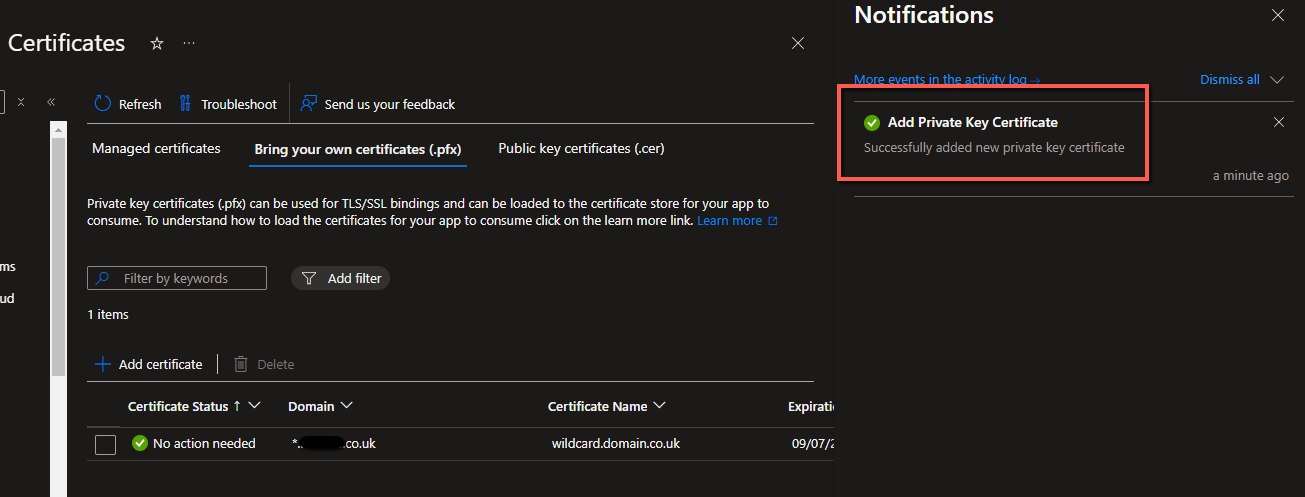
Once you have exported the Certificate, you should now be able to take that PFX and upload it to your Web App with no issues.