
Using Azure Front Door in front of Application Gateways
As you may know, Azure does support putting Azure Front Door (AFD) in front of Application Gateways (AppGws). The config can get a little awry if you are not aware of the various components of the solution and specifically within AFD. While there is documentation on https://learn.microsoft.com, it can be quite high level and ambiguous.
In this article, I will go through the details to note when deploying something like this.
When should I deploy an Application Gateway behind Front Door?
Application Gateway behind Front Door is useful in these situations:
- You want to balance the traffic not only globally, but also within your virtual network. Front Door can only do path-based load balancing at the global level, but Application Gateway can do it within your virtual network.
- You need Connection Draining, which Front Door doesn’t support. Application Gateway can enable Connection Draining for your VMs or containers.
- You want to offload all the TLS/SSL processing and use only HTTP requests in your virtual network. Application Gateway behind Front Door can achieve this setup.
- You want to use session affinity at both the regional and the server level. Front Door can send the traffic from a user session to the same backend in a region, but Application Gateway can send it to the same server in the backend.
Setup Components
- URL with DNS Management (domain.com with DNS Zone hosted in the same subscription)
- Azure Front Door Standard/Premium. Front Door Classic is being deprecated in March 2027.
- Application Gateway Tier: WAF V2
- KeyVault(s) with Certificate
- For the AppGWs they would need a KV in the same region as the AppGW(s), so you would have multiples in a Prod environment.
- AFD can use any KV.
Application Gateway Setup in Detail
For the purposes of this document, I spun up an AppGW in UKS, using two listeners. Main for HTTPS and an HTTP redirect to HTTPS. Arguably we dont need the HTTP one as we are securing the front end / redirect with AFD, so that’s optional really. Mine is in here out of sheer habit.
AppGW Naming Convention The naming convention I follow is App/Url-Protocol-component. For example, for the domain test.domain.com
- Listener: test.domain.com-https-listener
- HTTP(S) Rule: test.domain.com-http(s)-rule
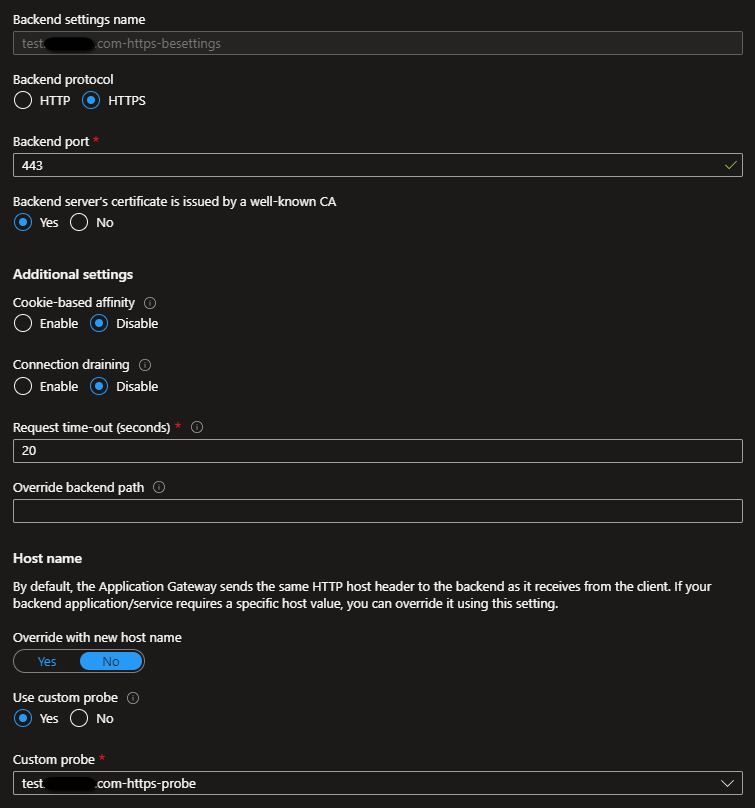
- Backend Settings: test.domain.com-https-besettings
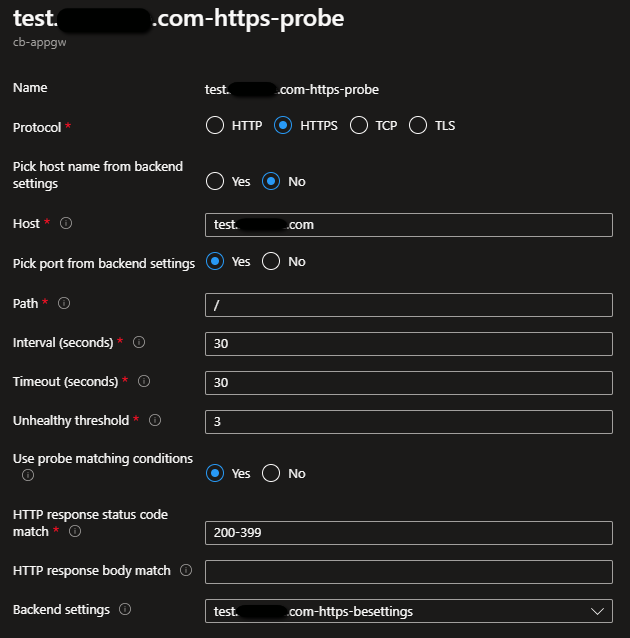
- Custom Health Probe: test.domain.com-https-probe
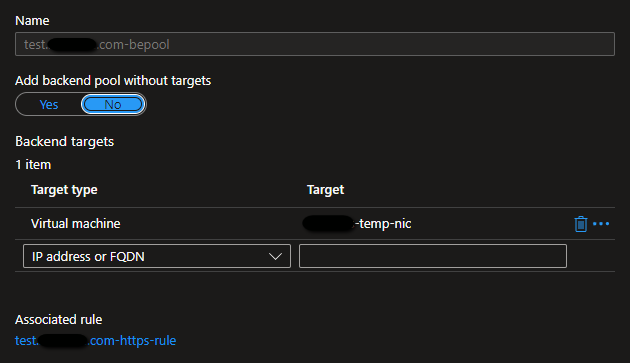
- Backend Pool: test.domain.com-bepool This makes it much easier to navigate the config when setting up mulitple domains and/or troubleshooting configs.
AppGW Prerequisites/Assumptions
For the purposes of this document I used the default setup for AppGW/ Keyvault integration, the details of which are here.
- I used a Windows VM in the test.domain.com-bepool AppGW Backend Pool, which was setup with IIS, a 443 binding attached to the hostname (test.domain.com) with the SSL cert, and SNI enabled. Also consider the VMs NSG rules need to allow the AppGW inbound on 443.
- AppGW is already integrated to the KV for SSL Certificate.
- Public IP on the AppGW.
- DNS Name Label on the Public IP of the Application Gateway, make a note of this as it’s important later on.
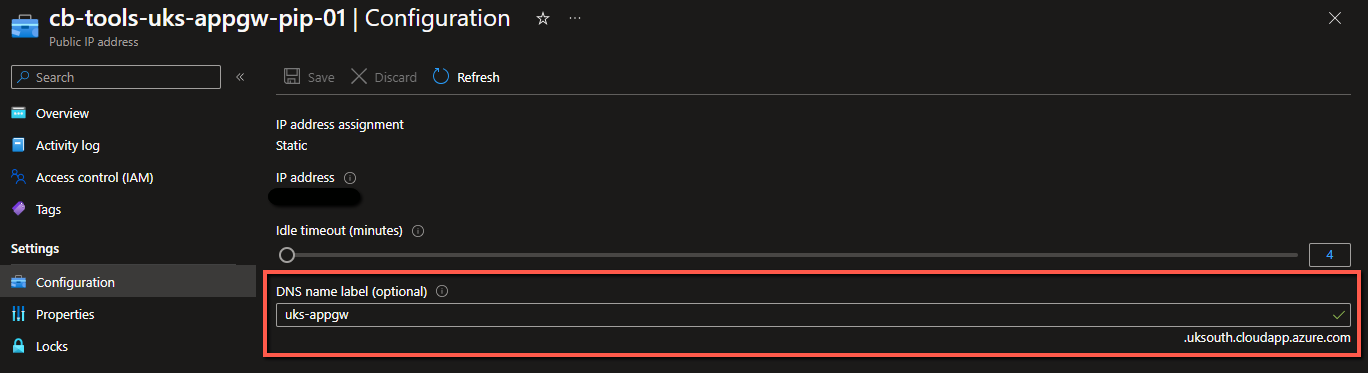
In this example, this is uks-appgw.uksouth.cloudapp.azure.com
- If the AppGW Subnet has an NSG associated, which is should, you will need to add the following rules to allow AFD and ensure the AppGW passes health probes:
| Source Service Tag | Destination Ports | Destination | Protocol | Action | Note |
|---|---|---|---|---|---|
| GatewayManager | 65200-65535 | Any | TCP | Allow | |
| AzureFrontDoor.Backend | 80,443 | Any | Any | Allow | |
| AzureLoadBalancer | Any | Any | Any | Allow | This rule should exist already |
| Internet | Any | Any | Any | Deny | This will prevent anyone from bypassing AFD, make sure Priority is set below the above rules, or leave it out if you want to test the AppGW without AFD |

Optional: To further secure your config, lock down acces to AppGW via a WAF Policy that allows the AFD ID.
Application Gateway Config
Listeners:
As stated ealier, the AFD is doing the redirect from HTTP to HTTPS so the 80 rule below is not needed.

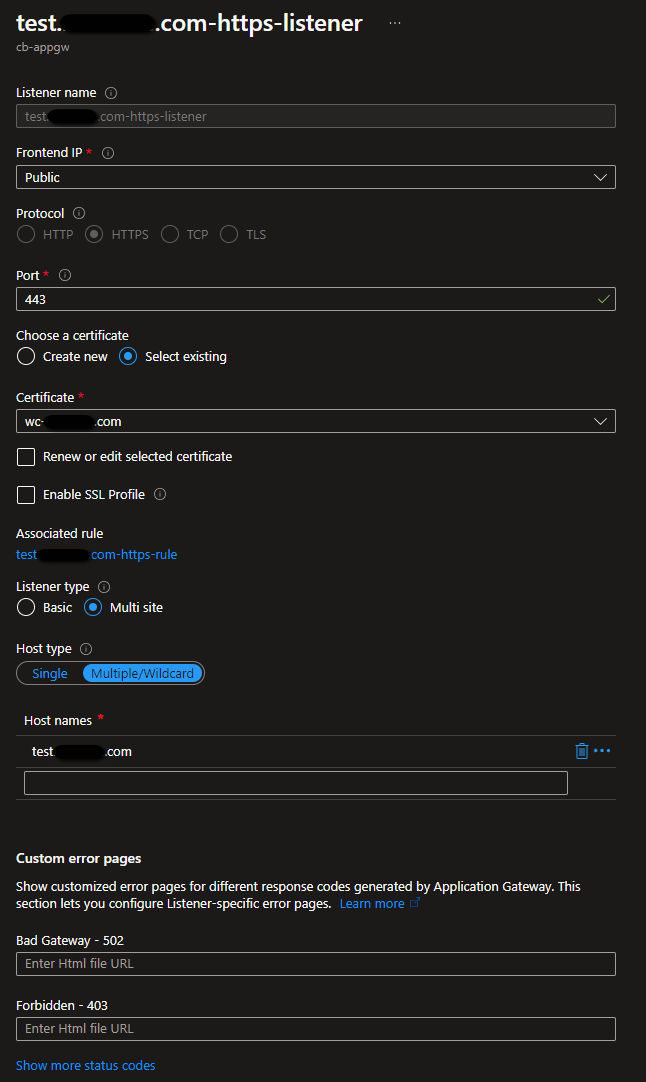
HTTPS Rule:
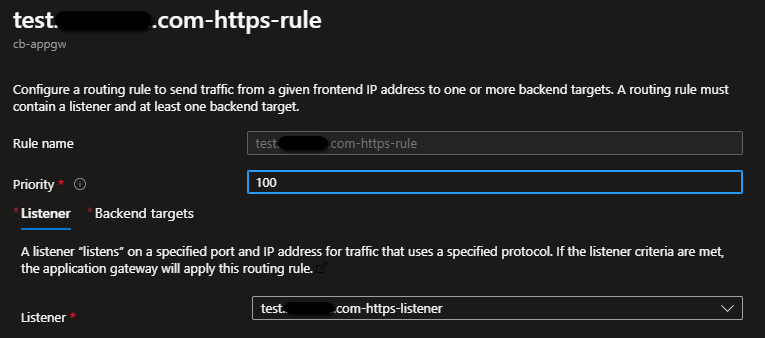
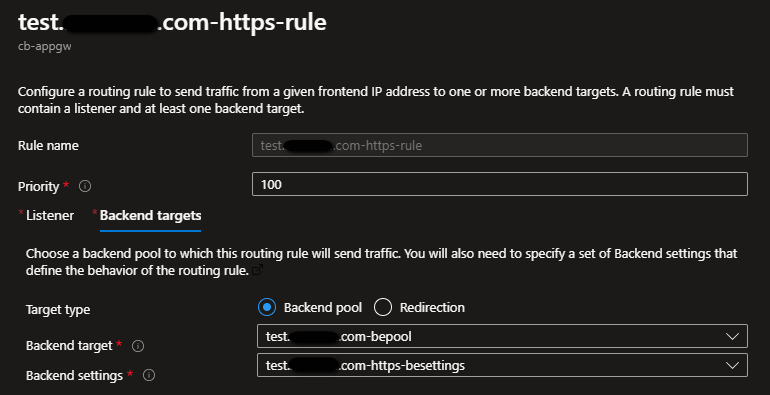
Backend Settings:
Backend Pool:
Custom Health Probe:
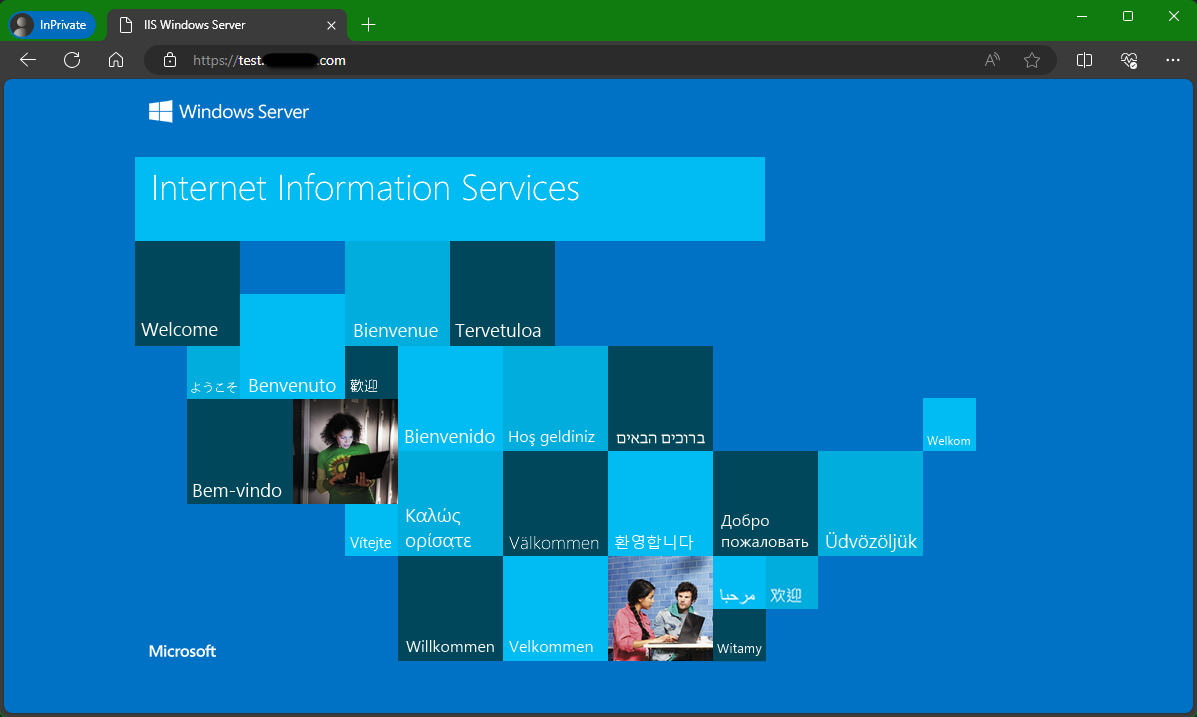
With all that setup/in-place. You should have a working AppGW > VM scenario that can now be used behind AFD. Test it by browsing to your URL (https://test.domain.com), remember to check the NSG rules on the AppGW NSG and VM NSG if you have any issues.
Azure Front Door Setup in Detail
Key Components
It’s vital that you understand the key components of AFD correctly. It will make or break your config and your ultimate success with AFD. While there is documetation on these components, they are somewhat ambiguos and high level. They do not go into detail for each set.
Pricing Tier: For most scenarios, Standard should suffice. But key features to use Premium would be: Managed WAF Rule Sets | Bot Protection | Private Link Origins.
Front Door Profile
The name of the Instance of Front Door. Purely the Resource Name, outside of this its not referenced in any way in the routing of your app/dns/config at all.
Domains / Secrets
- Secrets: This is where you add your custom Cert to AFD, via Keyvault. First you will need to configure KV access.
- Domains: Add your Custom Domain(s) to AFD before creating your rules.
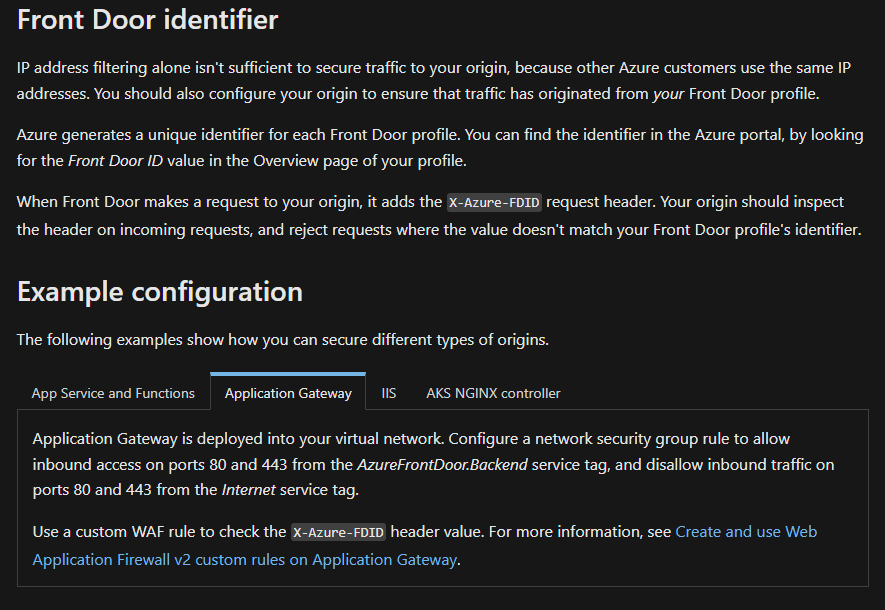
The Unique ID that references a single AFD Profile. This ID is required when you need to secure traffic between AFD and your Origins, As AFD IPs are shared resources.
See more on that here.
Endpoints
This is the Front Edge of your Front Door config. This is the reference point to which your custom domain (https://test.domain.com) will reach out to. This will also be the value you need to use in the CNAME that points the custom domain to AFD.
So in DNS for test.domain.com CNAME TO AFD Endpoint Name
e.g test.domain.com CNAME TO test-domain-com-ep-czb4fwasccg2rgd3.a01.azurefd.net
Origin Groups
An origin group (OG) is a set of origins to which Front Door load balances your client requests. Think of it as a Backend Pool. Typically you will have multiple Origins, from different regions, within your OG.
Microsoft’s definition of an Origin Group is detailed in this article.
For this document, the OG is called test-domain-com-og. Contained within is my Origin, which is the AppGW.
Origin
This references the source resource/place that your content. Origins are the application servers/resources where Front Door will route your client requests. The devices that actually have access to the content, in this case, for test.domain.com it will be the AppGW. Think of this as the members of your Backend Pool.
Microsoft’s definition of an Origin is detailed in this article.
For this POC, the Origin is my AppGW. To reference the AppGW in the Origin, we need Origin Host Name (A DNS resolveable name) and Host Header:
- Origin Host Name: The Origin Host Name comes into play when adding Origins into an Origin Group. This can be either a Public IP or a “Name” of the Origin Device. Note: The name must be resolvable from Public DNS. They are really looking for a public name that resolves to the resource (AppGW/AppService/etc) that is serving your app (test.domain.com), not your app.
- Host Header: The Host Header is the URL of your Application that you are sending to AFD, in this case test.domain.com.
Origin Host Name
Take note here, this section is detailed but vital to the success of your config
In an AFD scenario, this is the component that will trip most people up, because of the confusion in documentation/assumptions made. This I found is largely to do with the UI behaviour and the lack of precise information around the terms and methods being used by AFD/The Portal.
When adding an Origin, you can select the “Origin Type” from the drop down, based on what you select, the Portal then auto populates “Host Name” and “Origin Host Header” fields, in my case when I choose “Application Gateway” I get these:
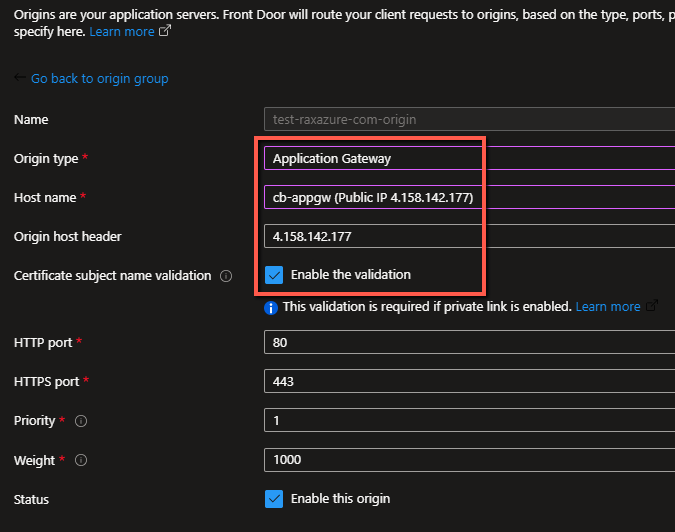
X.X.X.177 being the Public IP of the AppGW in this case. This is incorrect and will not work in this scenario.
What you need to do is create a DNS Name for the AppGW, the “Name” in the above pic is not resolvable from Public DNS, yes the IP is but we dont want to use IPs.
- Create a DNS Name for your AppGW Resource - Go to the Public IP of the ApppGW > Config > Create a “DNS Name Label”.
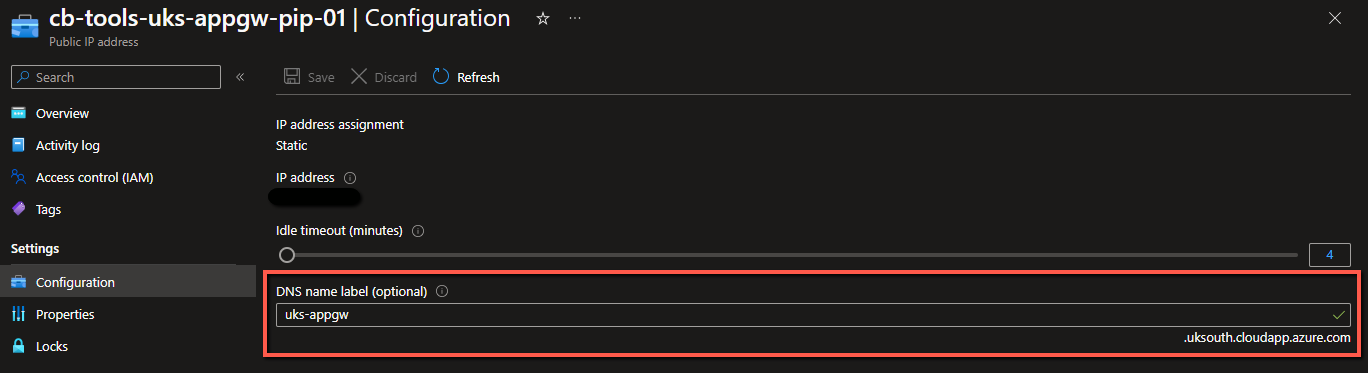
In this example the name we created is “uks-appgw.uksouth.cloudapp.azure.com”.
This can be our “Origin Host Name”. Note it will be different from our App URL/Hostname “test.domain.com”, because you need to be able to tell AFD where your origin is, remember that “test.domain.com” should be pointing to the AFD Endpoint, so you cannot use that.
If you are using a “Origin Host Name” that is NOT included in your SSL cert, you MUST uncheck “Certificate subject name validation” check box, it’s checked by default. Otherwise your Probes will fail as they will try to verify the name in that field against the SSL cert for your custom domain (test.domain.com). In this scenario we are using the “default” name of the PIP so it wont be included. (The SSL for _.domain.com doesnt include _.uksouth.cloudapp.azure.com).
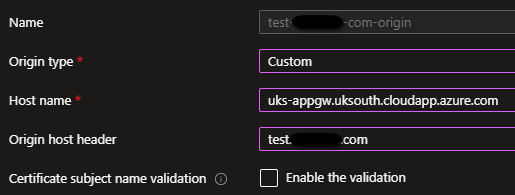
The other method, recommended, to enable the validation, would be to create a CNAME record that points to the AppGW DNS Name. e.g: uks-appgw.domain.com CNAME TO uks-appgw.uksouth.cloudapp.azure.com.
Use this Custom CNAME as your “Origin Host Name”, and enable validation:
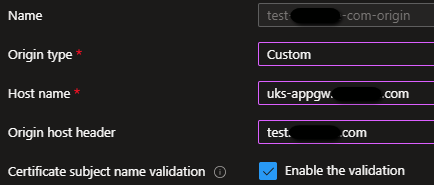
Host name: uks-appgw.domain.com
Origin host header: test.domain.com
So this is roughly how it translates:
- Client sends request to https://test.domain.com
- AFD receives the request, via the test.domain.com CNAME TO test-domain-com-ep-czb4fwasccg2fyd3.a01.azurefd.net (AFD Endpoint) DNS record
- AFD matches the request via the Route and Origin Group configured on the Endpoint
- AFD locates where the Origin is from “Origin Host Name”
- AFD contacts Origin via “Origin Host Name” (uks-appgw.domain.com) entry and presents “Origin Host Header” (test.domain.com) for the request
- AppGW sees “Origin Host Header” (test.domain.com) and matches to the correct Listener (test.domain.com-https-listener)
- AppGW does its thing and Client is happy
- Profit.
Troubleshooting Tips
- Logs are your friend, in this scenerio specifcally, after connecting AFD and AppGW to LAW via diagnotics settings, you will want to query the following tables:
- FrontDoorAccessLog
AzureDiagnostics | where Category == "FrontDoorAccessLog". - FrontDoorHealthProbeLog
AzureDiagnostics | where Category == "FrontDoorHealthProbeLog"- Note, it will only log probe failures, not successes. - ApplicationGatewayAccessLog
AzureDiagnostics | where Category contains "ApplicationGatewayAccessLog"- Helpful to see the probes from AFD.
- FrontDoorAccessLog
- When updating configs on AFD, allow for upto 20mins of propogation, otherwise you may be getting the incorrect results when testing.
invoke-webrequest -uri https://test.domain.com -Headers @{"Cache-Control"="no-cache"}- This simple PS Command will send a request while ignoring cache. Helpful so you dont have to keep opening new private browsers.